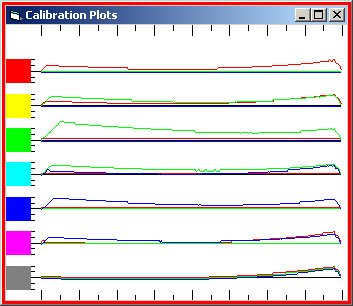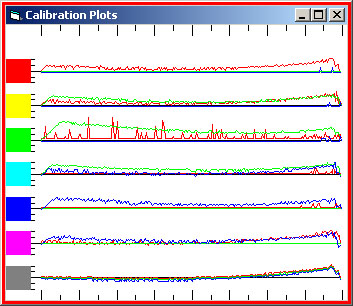



| |
The Colour Watcher Tool
I built this Colour Watching Clock
for Fun
in helping me explore colour spaces and their
channel values
and as a Serious tool
when Curving in Photoshop
- much better than Photoshop's Info Palette readings,
also useful when setting Black and White points
using the Dropper mechanisms
and when correcting colour casts
| Lets start with Fun...
The first time you run the clock it will show 3 colour spaces -
HSB, Lab and RGB.
The inside colour of the clock is the colour being watched - in this
snapshot a yellow-green colour. |

|
| |
|
|
Firstly the important Hue clock - with the hand pointing at the Hue value
and the thick part of it indicating the Saturation value.
|
 |
The Brilliance is not displayed diagrammatically. |
| |
|
|
| and also inside the clock, the Lab ab channel values, but not the L channel value.
These are shown as little circles, joined by a thin line, on the two 60
degree axis - Magenta<>Green and Blue<>Yellow.
|
 |
Note that I have had to invert the a channel direction to agree
with the Hue clock and so Magenta is on the left, but in the normal
Photoshop Curve dialog, Magenta is on the right (as it has +ve
values). |
| |
|
|
| Finally, the RGB channels are shown, beneath the
clock, as solid circles of colour, where the size is the channel value and
the colour the actual colour of that channel. |
 |
|
|
You can switch off, or select, which of these 'clock' displays you want
to see - just right-click anywhere on the clock face.
|
To see the Lab values more clearly, you can increase the size of the clock
using the Cntrl & + key (or Cntrl & - to reduce) or
right mouse-click (in the clock) to select from the pop-up menu (Window
Size>Bigger).
If you select the Help>About option, and then run the mouse around
the RGB Color Wheel (conveniently included on the About dialog!), you may well
be as amazed, as I was, at how the Lab colour values move and vary.
Now as a Serious tool...
Displaying the colour value in the form of a clock is much easier to read,
and understand, than looking at Info Palette values - the Hue clock is the sort
of visual aid Artists use, once you've played with it for a bit you will wonder
how you ever got on with just numbers.
Firstly the hands (and Lab axis, if showing) disappear when the colour is Neutral
- a really quick indicator that you've exactly got grey.
You can also run up any number of clocks and have them monitor specific
points on an image - thus...
 |
|
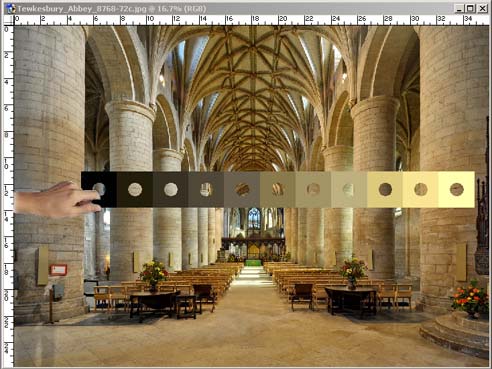
You can have a Watcher monitor the current colour under the
mouse, or you can run any number of them on stationary points - providing
you don't move the underlying image!
When each Watcher Clock is set to monitor a particular point, the
outside of the clock is the original colour and the current colour is
shown in the middle.
Opposite I've added a rather strong S curve (to demonstrate the change),
and I placed the
watchers after setting White point, so I could show you what the curving did.
This facility really becomes useful for removing colour casts.
|
|
|
Lastly, when you set the Black and White points using the Droppers in Photoshop Curve
dialog, there is no indication as to whether you have selected the best
point. But when you use the Levels dialog and hold down the Alt
key as you move the sliders, Photoshop shows you what you are clipping.
You can run my clock to give the same helpful indication when Curving.
Setting black/white points does two things - corrects the colour cast of the
end points and sets the full tonal range of the image.
| Either before or after you invoke the Photoshop
Curves adjustment dialog up, fire up the Watcher - by default it will float
over the image. |
 |
|
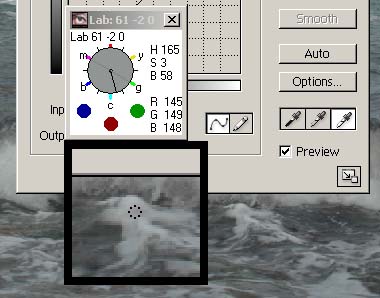
Opposite, I've placed it over the Curves Dialog and near the
wave where I want to set a White point - the Watcher includes an optional
small Magnifier of the area around the mouse (the mouse cursor is not
shown in these snapshots - but the little dotted circle shows where it
is). |
| Now press W on the Watcher (for White point). In the Curves
dialog select the White Dropper and then watch the magnifier
display, which changes to show what will be clipped.
Opposite I've selected White point and am moving the cursor
towards the top of the wave. Any area that is not white will be
clipped by Photoshop and become white and thus detail will be lost - so
move the point until the display becomes as white as possible. That
is then the best point, so just click the mouse to set it. |
|
 |
 |
|
And opposite is the result of setting that point.
Normally one would just hit W again and the Magnifier would
disappear, but I've left it showing to demonstrate the result.
You will notice that Photoshop sets the individual channels to those
values, correcting both colour and tone.
Difficult to show on a web page, but these snapshots may help give you
the idea how good and simple this is. |
If you are setting the Shadow point, then any bit that has not gone Black
will be clipped to black and you will loose colour and tone for it.
There is a cautionary note: the Watcher picks up screen RGB values
and not the underlying image values and so there can be a slight difference
depending on your current profile - but luckily it is accurate on Neutrals and
Skin tones. You can check this out by firing up the Watcher and compare
the Photoshop values with it's values (place the Watcher near the Info Palette
and view the image at 100% with both set to a single pixel).
If you wish to use the program, just download
it (virus checked by avast), unzip it and place the program on your PC
(sorry it will not work on Macs) and create a short-cut to it. The program
is completely free.
|